How to stop the screen from turning off automatically
If the screen becomes dark or a screensaver starts after some time, follow the steps below
This is an Amazon Fire TV system setting. DS-GO TV Player does not turn off the screen by itself.
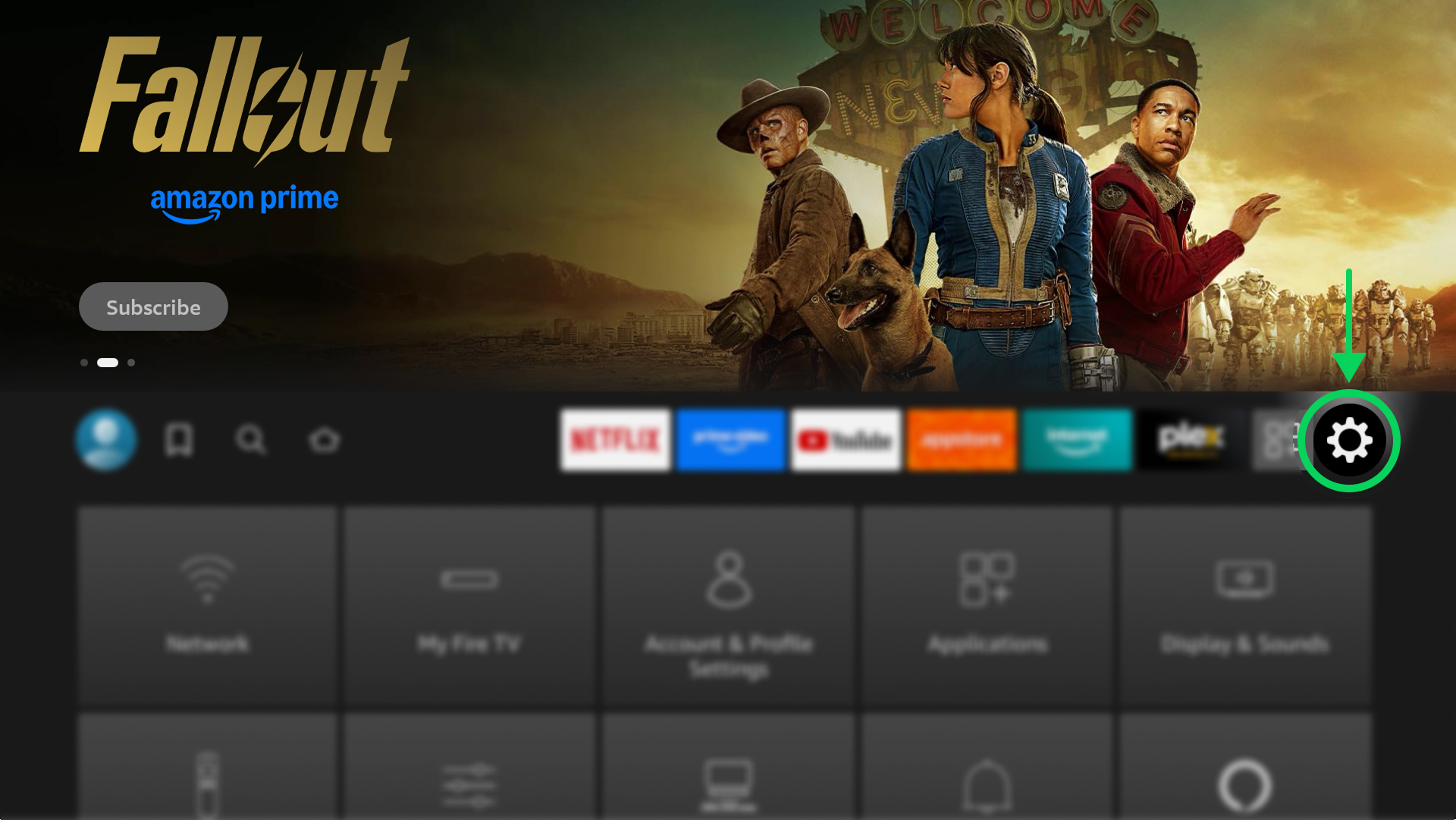
Open Settings
On the home screen, click the gear icon in the top-right corner.
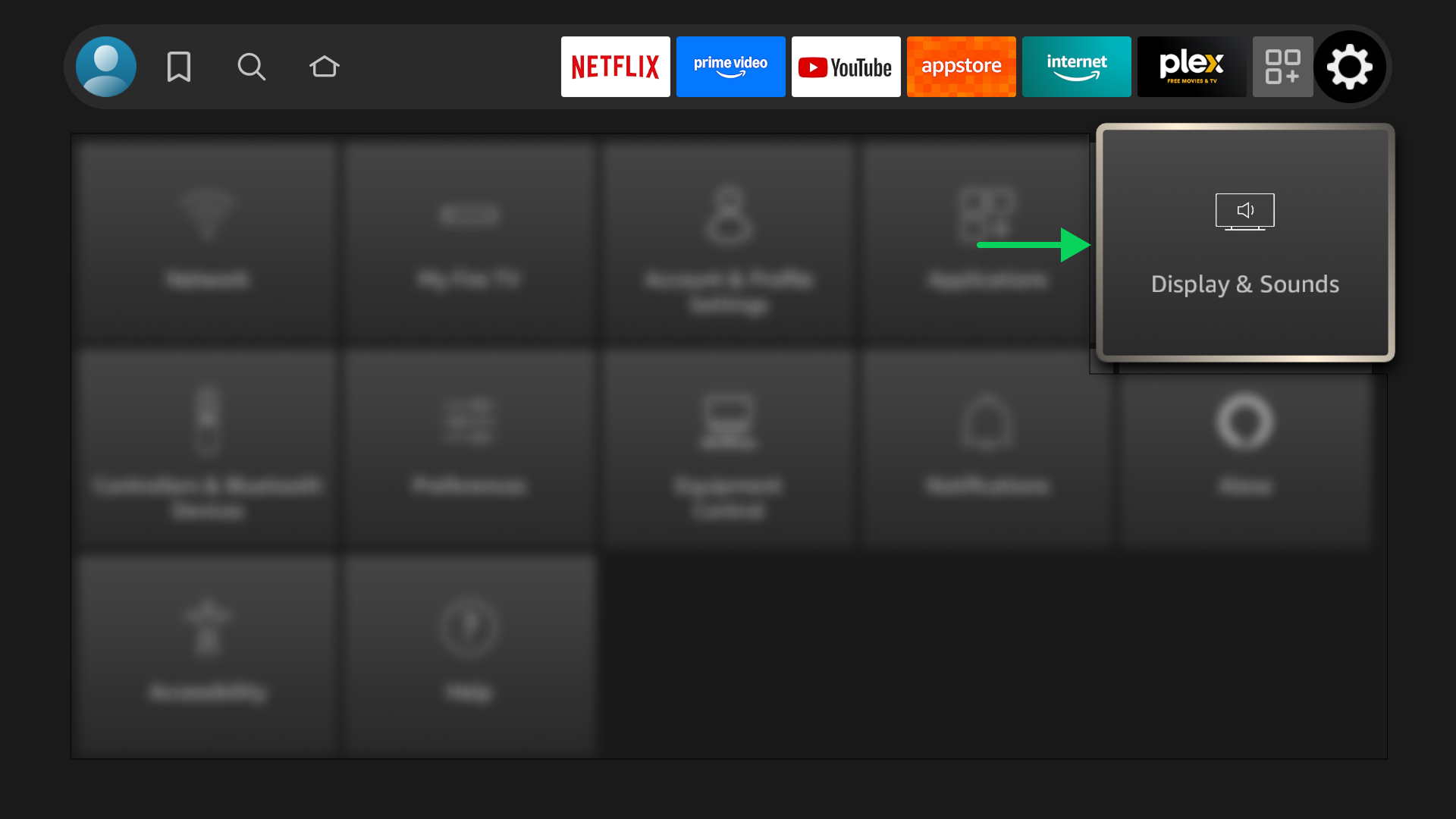
Open Display & Sounds
In the settings menu, select Display & Sounds.
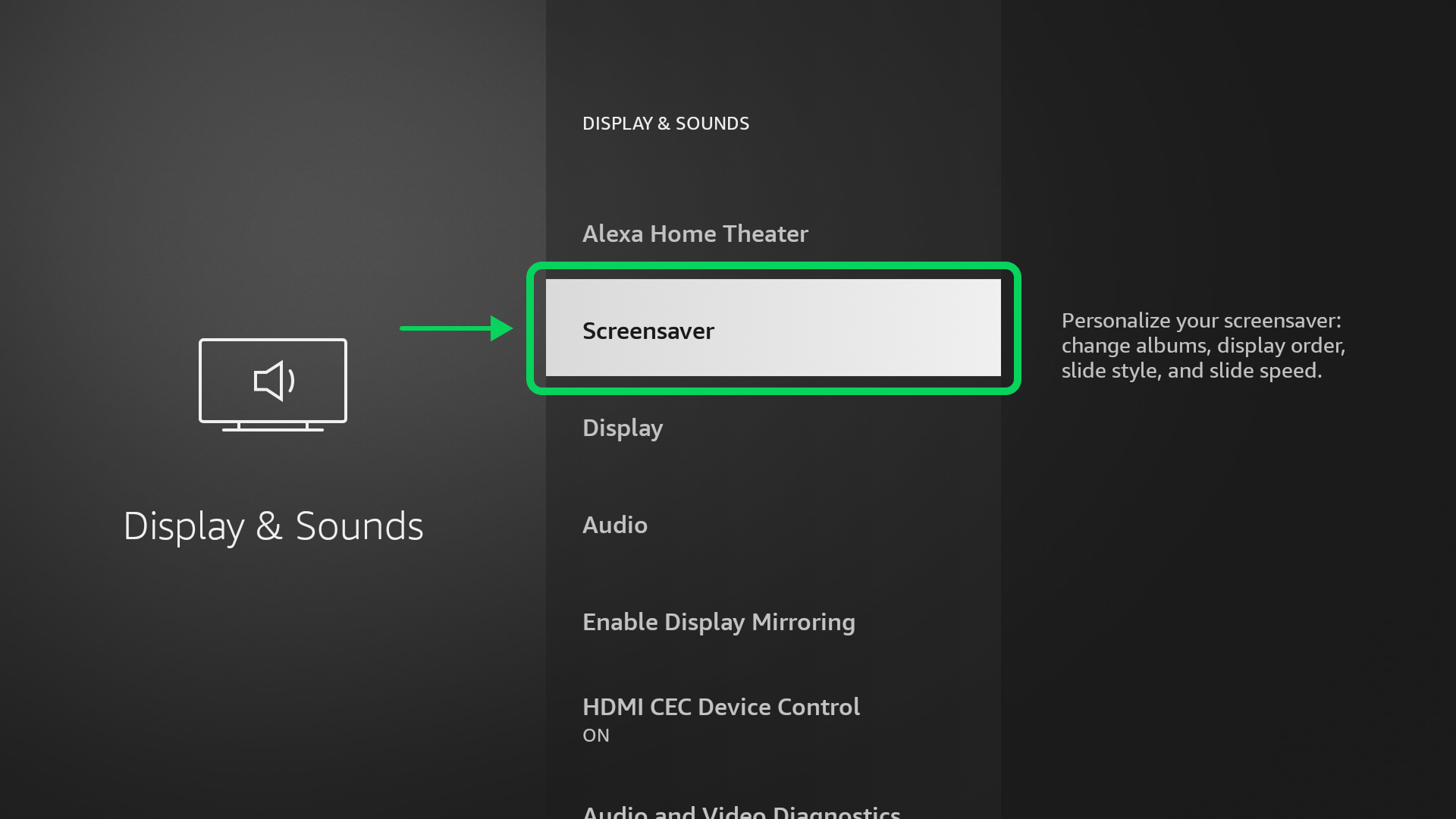
Open “Screensaver”
In the Display & Sounds section, select Screensaver.
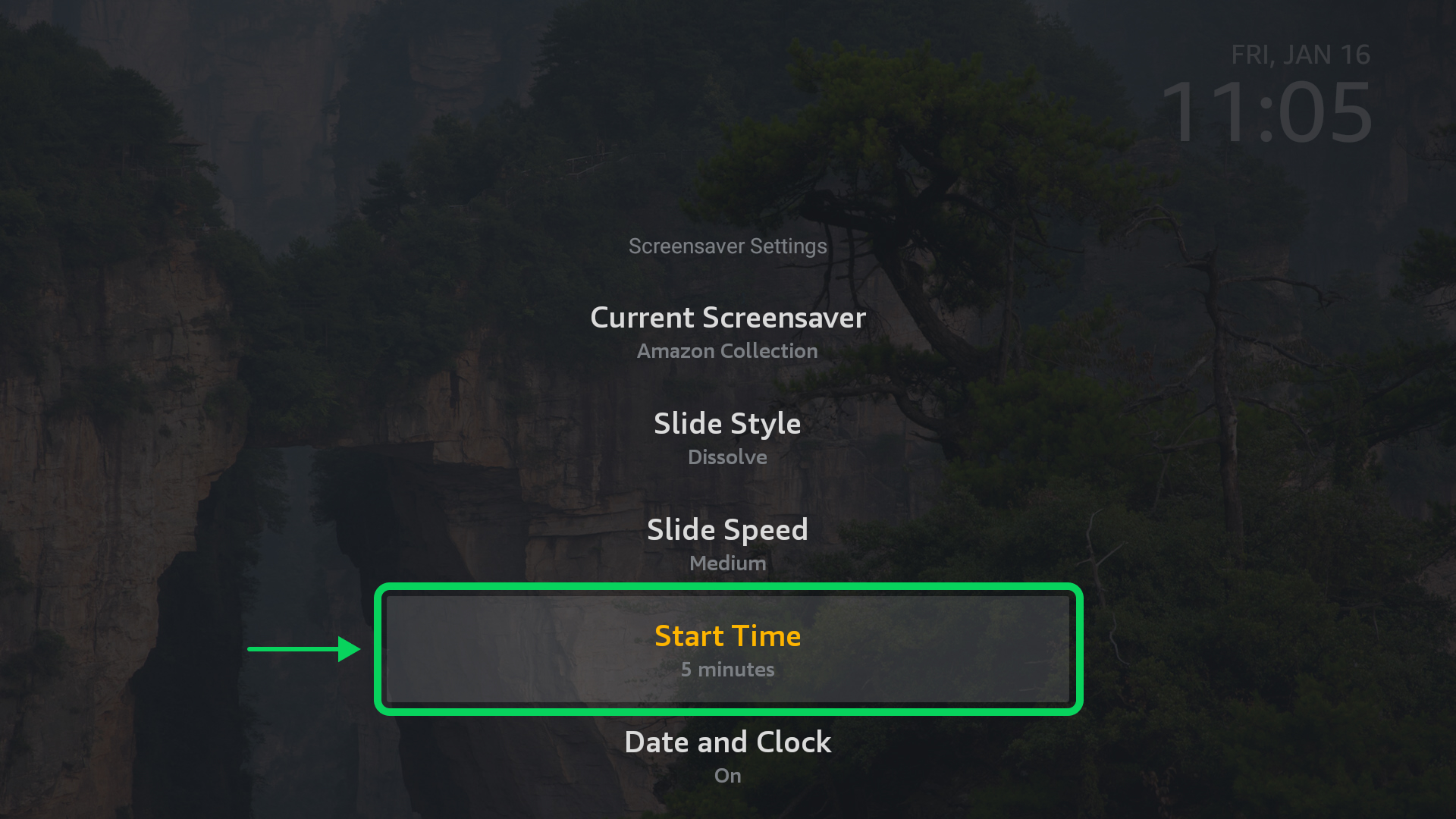
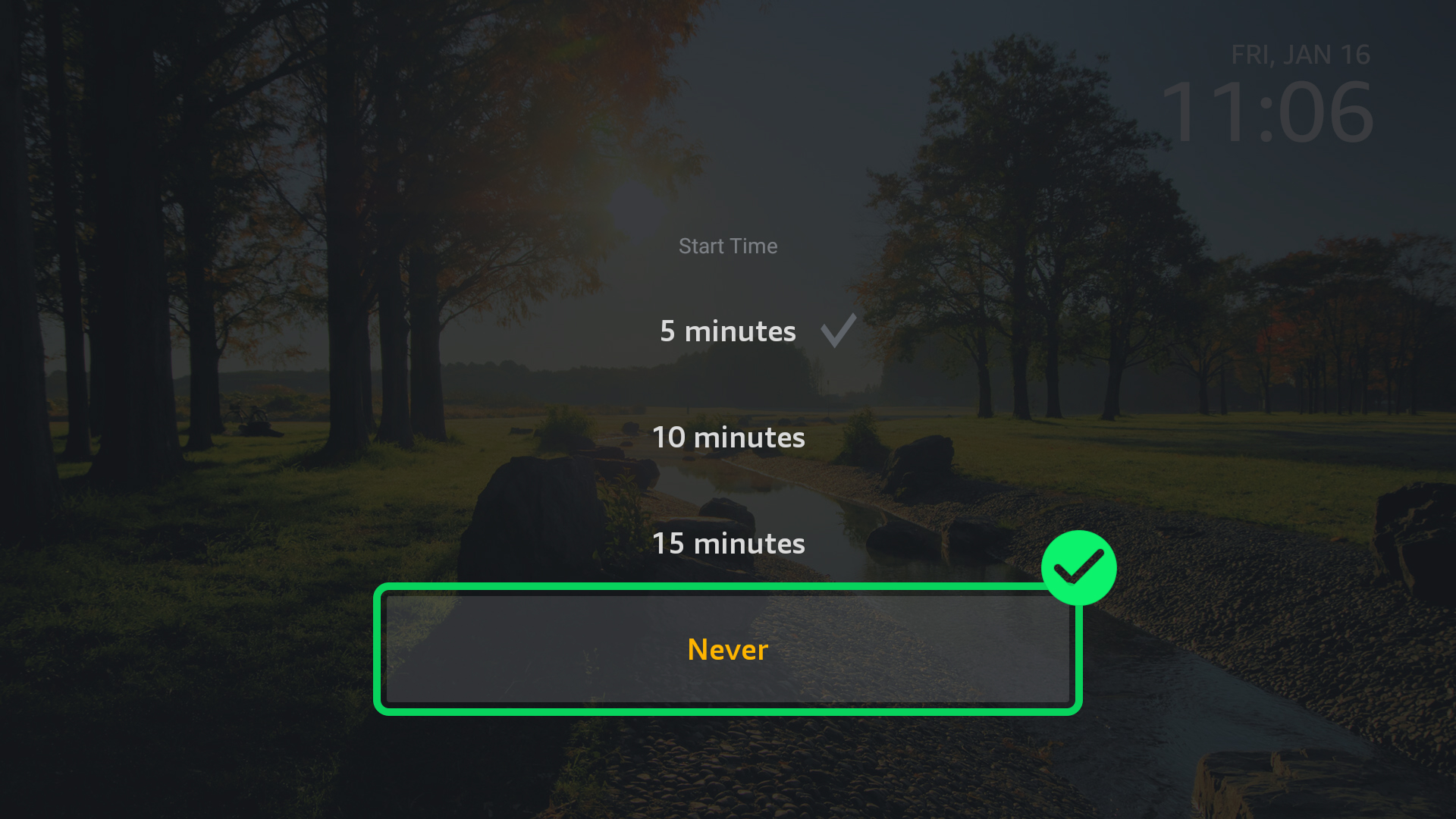
Open “Start Time”
In the screensaver settings, select Start Time.
Disable the screensaver
From the list, select Never.
Make sure Never is checked.
Done
Now:
- the screensaver will not start
- the screen will stay on
- DS-GO TV Player will keep running
Important
- This setting only needs to be done once
- After a Fire TV system update, it may reset. Just check it again
- If the screen still turns off, check the TV’s own settings (Energy Saving / Auto Power Off / Sleep Timer)
Note
On some Fire TV models, there may also be a Sleep option.
If available, set it to Never.